Citizen Connectivity Guide
Contents
- Overview
- Firmware Requirements
- Network Configuration
- Adding Machine in MachineMetrics
- Part Count Configuration
- Alternative: I/O Integration
- Troubleshooting
- Additional Resources
Overview
Citizen Cincom and other Citizen Swiss-type lathes use Mitsubishi M700-series controls. MachineMetrics has a dedicated Citizen M700 adapter specifically designed for these machines.
Adapter Selection by Control Type
| Control Type | Adapter to Use | Notes |
|---|---|---|
| M700 Series | Citizen M700 | Dedicated Citizen adapter |
| M850 Series | Mitsubishi M70 | Use standard M70 adapter |
⚠️ CRITICAL: Do NOT use MTConnect for Citizen machines unless explicitly instructed by MachineMetrics support.
Citizen Machine Models
Common Citizen machines compatible with MachineMetrics:
- Cincom L-Series (L20, L32, L220)
- Cincom A-Series (A16, A20, A32)
- Cincom B-Series (B12, B20, B32)
- Cincom K-Series (K16E)
- Cincom M-Series (M4xx)
- Miyano (various models with Mitsubishi controls)
Why Use the Citizen Adapter?
The Citizen adapter is optimized for:
- Multi-spindle configurations - Properly handles main and sub-spindle data
- Guide bushing operations - Specific to Swiss-type machines
- Part counting accuracy - Configured for Citizen's part counter signals
- Tool life data - Reads Citizen-specific tool management data
- Barfeeder integration - Monitors bar stock and feed operations
Video: How to connect Citizen M700
Step-by-step video walkthrough for Citizen M700 adapter setup.
Firmware Requirements
Minimum Firmware Versions
Before configuring your control for communication with MachineMetrics, the Mitsubishi NCU firmware on the machine must be at or above the minimum version listed in the table below. You must contact your Citizen machine vendor to arrange this update — do not attempt to update the firmware yourself.
The table below shows, for each family, the MINIMUM NC-MAIN version recommended on a control to avoid any compatibility issues:
| Model | Minimum Recommended NC-MAIN |
|---|---|
| A32 | AE |
| K16E | EM |
| L12 | EP |
| L720 | B5 |
| L20E IX | EU |
| L20X | EM |
| L220 | EQ |
| L32 | EQ |
| M4xx | EU |
⚠️ WARNING: Connecting the machine to MachineMetrics without the minimum recommended NC-MAIN firmware version may cause the machine to alarm.
How to Check Firmware Version
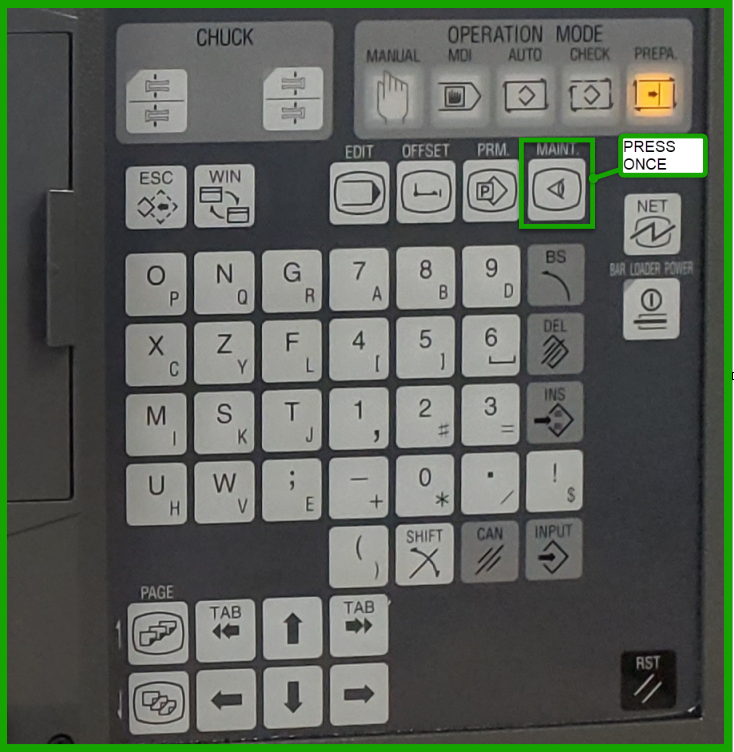
Step 1: Access Software List
Press the MAINT hardkey on the control panel.
Note: Hardkey buttons may vary depending on model of the machine.
Step 2: View Software List
Press the S/W LIST softkey.
Step 3: Verify NC-MAIN Version
Check the NC-MAIN firmware version (firmware P/N) on the screen.
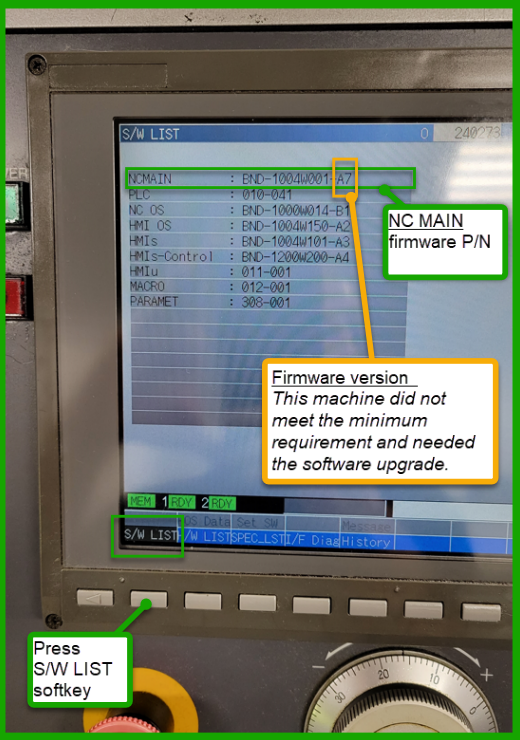
Compare the version shown to the minimum recommended version in the table above.
If the firmware meets the minimum requirements: Proceed to Network Configuration.
If the firmware does NOT meet the minimum requirements, follow this escalation path to get the firmware updated:
-
Contact your Citizen machine vendor first. Reach out to the distributor or dealer who sold or services the machine and request a firmware upgrade to the minimum NC-MAIN version for your model. This is the standard path and should be your first call.
-
If your vendor is unable to help, contact Citizen directly. Many customers have successfully resolved firmware update issues by going directly to Citizen Machinery. This is a well-established path — Citizen has handled these requests before and can coordinate the update even when local vendors cannot.
- Citizen Machinery Americas: www.citizenmachinery.com
- Reference your machine model, serial number, and the minimum NC-MAIN version required.
Although Citizen machines use a Mitsubishi NCU, firmware updates for Citizen machines are not supported by Mitsubishi directly. Contacting Mitsubishi will not result in a firmware update for your Citizen machine. Always go through Citizen or your Citizen vendor.
⚠️ WARNING: Connecting the machine to MachineMetrics without the minimum recommended NC-MAIN firmware version may cause the machine to alarm.
Network Configuration
Finding the Ethernet Port
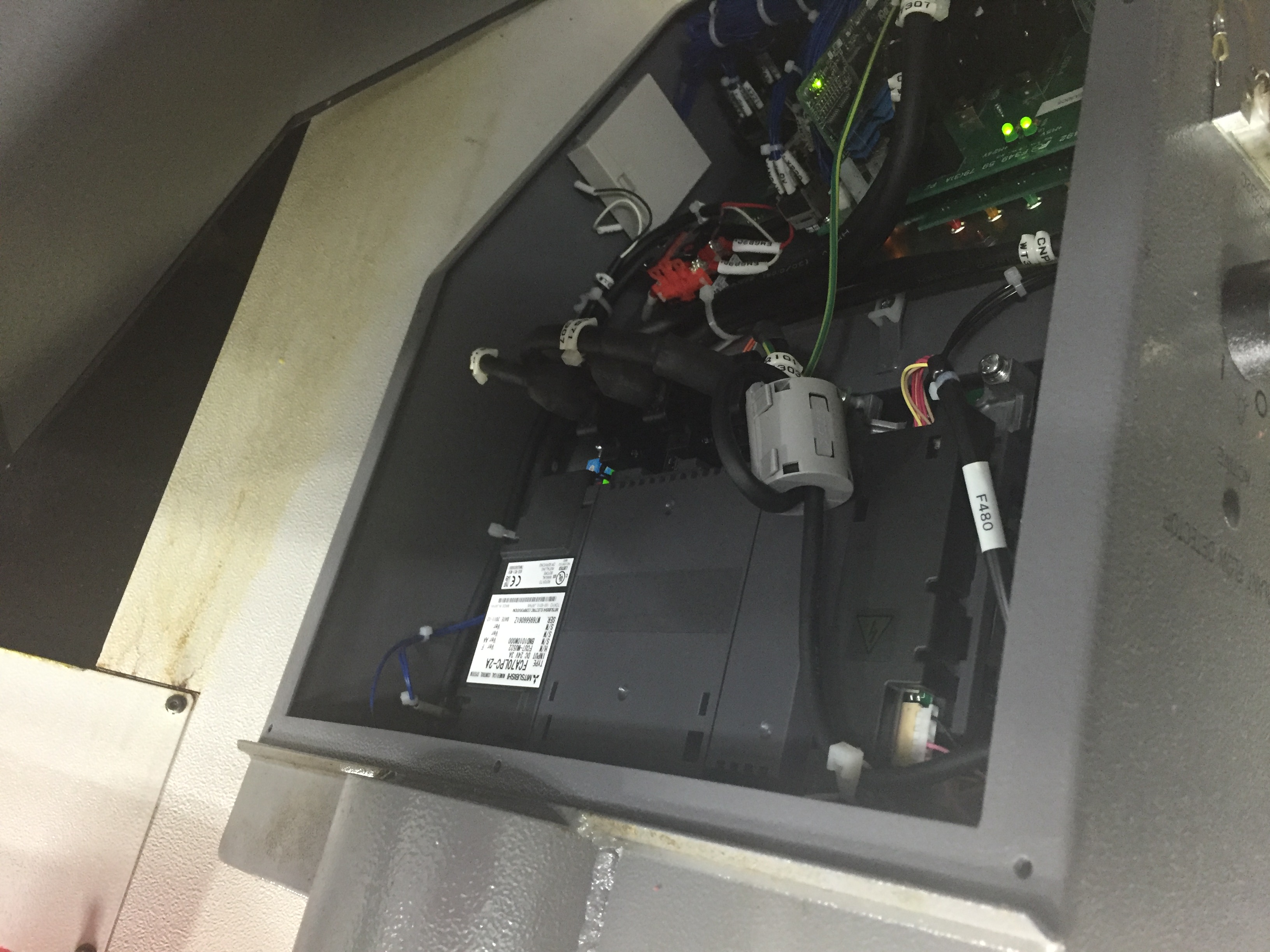
The Mitsubishi NCU Ethernet (LAN) port is located inside the electrical cabinet. Open the cabinet door on the back or side of the machine to access it.
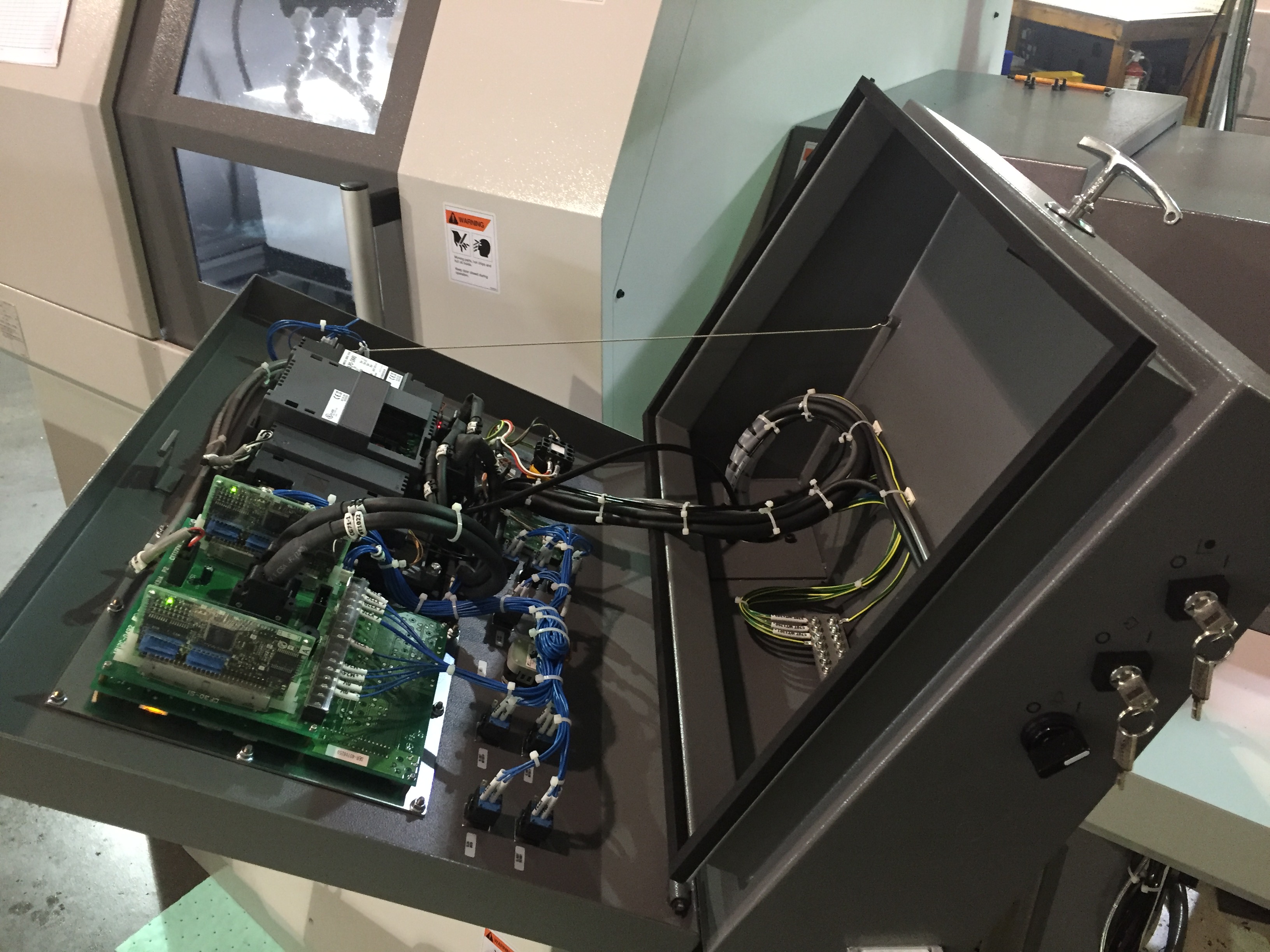
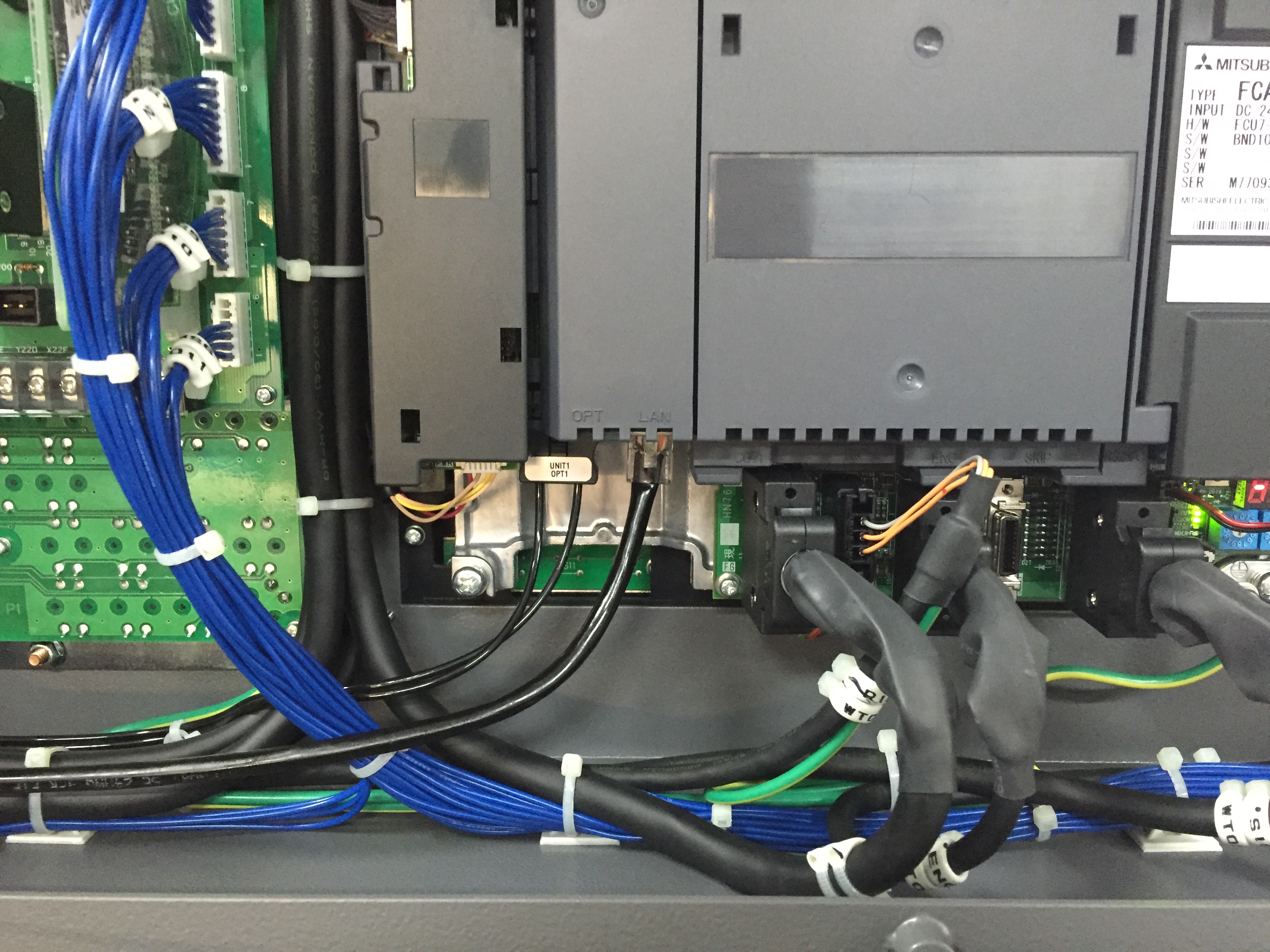
On the Cincom A32, the Mitsubishi NCU board is visible in a similar location:
Prerequisites
Before configuring network settings:
- Firmware meets minimum requirements (see above)
- You have a static IP address assigned for this machine
- You have subnet mask and gateway information from your IT team
- You have physical access to the machine control
Configuration Steps
Step 1: Access Maintenance Mode
Press the MAINT hardkey.
Step 2: Open Interface Diagnostics
Press the I/F DIAG softkey.
Step 3: Enter Password
Type 1001//M and hit the INPUT softkey.
Step 4: Access Parameters
Press the PARAM hardkey.
Step 5: Navigate to Communication Settings
Press the MENU SEL softkey once.
Step 6: Open Basic Communication Settings
Press the BAS COM softkey.
Step 7: Navigate to IP Settings
Press PGDN hardkey until you see "Global IP Address".
⚠️ WARNING: DO NOT ENTER IPs INTO "HMI IP" FIELDS - THIS WILL BRICK YOUR MACHINE!
Step 8: Enter Network Configuration
Enter the following (press INPUT hardkey after each entry):
- Global IP Address: Your assigned static IP (e.g.,
192.168.1.150) - Subnet Mask: Your network's subnet mask (typically
255.255.255.0) - Gateway IP: Your network gateway (if required)
Step 9: Reboot Machine
Reboot the machine for settings to take effect.
Step 10: Test Connection
Ping the IP address you configured from a computer on the same network to verify communication:
ping 192.168.1.150
You should receive replies confirming network connectivity.
Adding Machine in MachineMetrics
Step 1: Navigate to Machine Settings
- Log into MachineMetrics
- Go to Assets → Machines
- Click Add Machine
Step 2: Enter Machine Details
Fill in machine information:
- Machine Name: (e.g., "Citizen L20-VIII")
- Make: Citizen
- Model: (e.g., "L20", "L32", "A32")
- Edge Device: Select your Edge device
Step 3: Select Adapter Type
Choose the appropriate adapter based on your control:
| Control Type | Adapter to Select |
|---|---|
| M700 Series | Citizen M700 |
| M850 Series | Mitsubishi M70 |
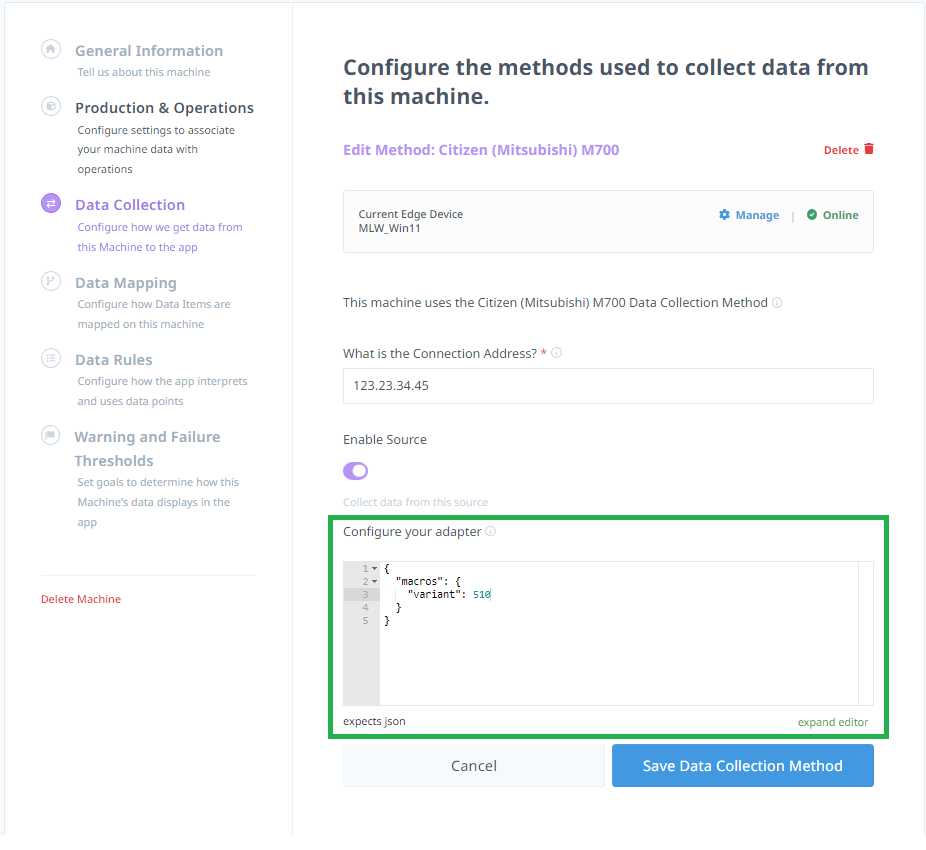
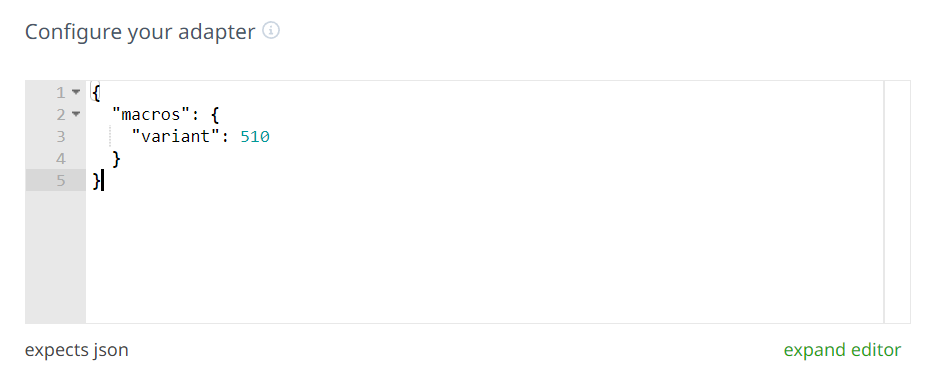
The adapter JSON accepts a macros.variant field to specify which common variable set to read. The default variant is 510:
Step 4: Enter Connection Details
Connection address: <IP address>:<port>
Examples:
- Citizen L20 (M700):
192.168.1.150:683 - Citizen with M850:
192.168.1.150:683
Note: Port number is typically 683 for Citizen machines. Verify on the control network settings if connection fails.
Step 5: Test Connection
- Click Test Connection
- Wait for connection verification
- If successful, click Save
- If failed, verify:
- IP address is correct
- Port number is correct
- Machine is powered on
- Network connectivity exists (try pinging machine)
- Firmware meets minimum requirements
Part Count Configuration
Enabling Part Count in Single Mode
For Citizen M700 series controls, follow these steps to enable part count in single mode:
Step 1: Access Maintenance Mode
Press the MAINT hardkey.
Step 2: Open Interface Diagnostics
Press the I/F DIAG softkey.
Step 3: Enter Password
Type 1001//M and press INPUT.
Step 4: Access Parameters
Press the PARAM hardkey.
Step 5: Navigate to Menu Select
Scroll to the right with the arrow keys until you see Menu Sel.
Step 6: Open Menu Select
Press the Menu Sel softkey.
Step 7: Access Bit Select
Press the BIT SELECT softkey.
Step 8: Select Parameter 6401
Select parameter 6401.
Step 9: Modify Bit
Change the third from the right number from 0 to 1.
Example: 01001000 → 01001100
Step 10: Save
Press the INPUT hardkey.
Step 11: Reboot Machine
Reboot the machine for the setting to take effect.
Part Counting Methods
Part counting on Citizen machines can use:
1. Work Counter (Preferred)
- Built-in Citizen work counter
- Most accurate method
- Configure in adapter settings
2. M-Code Trigger (M56)
- M56 is the standard Citizen part counter M-code
- Triggers part count increment when executed in the program
- Verify M56 is present in the machine's part program — consult the operator's manual for your specific machine to confirm
3. Barfeeder Signal
- Monitor bar advance signal
- Count on bar stock feed
- Useful for bar-fed operations
Method Selection
Use the following guidance to choose the right part count method:
- Work Counter — Use this as the default for M700-series machines. It is the most reliable method and requires no program changes.
- M-Code Trigger (M56) — Use this when the Work Counter is unavailable or when program-level control is preferred. M56 is the standard Citizen part counter M-code.
- Barfeeder Signal — Use this for bar-fed operations where bar advance is a reliable proxy for part completion.
If you are unsure which method to use, start with Work Counter and switch only if counts are not incrementing correctly.
Machine Setup
Per Citizen documentation, M56 is the part counter. The customer should verify this in their own machine documentation. Once confirmed, M56 is what drives the machine count.
Data Rules
Under data rules, the part counter source should be set to one of the part counters listed in the dropdown.
Configuration in MachineMetrics:
- Go to Machine Settings → Data Rules
- Select which part counter source you wish to use from the dropdown
M6 Fallback
If the count value is still not coming through after following the steps above, M6 can be used as a fallback. M6 is triggered during a bar load routine.
Add the following adapter script and map the resulting data item as a part count:
version: 2
declare-keys:
  - block
variables:
  m6-pulse:
    - source: block
    - expression: block == 'M6'
    - rising-edge
  mm-count:
    - source: m6-pulse
    - count
data-items:
  - mm-count
After implementing this script, the mm-count data item must be mapped as a part count. When mapping:
- Give it a name such as MM Count
- Ensure it is selected as a counter under data rules
Citizen M850 Control
Recent Citizen machines ship with the Mitsubishi M850 control. The M850 uses two independent counters:
- Internal HMI counter — the counter the operator sees on the machine screen
- External part-count signal — the signal MachineMetrics reads via the edge device
These counters are independent. If MachineMetrics shows 0 parts while the HMI counter increments, the external signal is not bound to an M-code present in the part program. This binding is configured via parameter #8001.
If parameter #8001 is not set to the M-code used in the part program, MachineMetrics will show 0 parts even though the on-screen HMI counter increments correctly.
Configuring the Part Counter on M850 Controls
- Press Home
- Navigate to Parameter → System 1
- Select Control
- Select Process Param
- Set
#8001to the M-code used to count parts in the part program (e.g.,56for an M56) - Power cycle the control
For assistance, contact support@machinemetrics.com.
Alternative: I/O Integration
When the native M700 adapter is not available or supplemental signal monitoring is required, Citizen and Miyano machines can be connected using I/O (Digital Input/Output) methods. These use the machine's electrical outputs — stack lights, auxiliary relays, or M-function signals — wired to a MachineMetrics I/O module.
Method 1: Stack Light (Running/In-Cycle Signal)
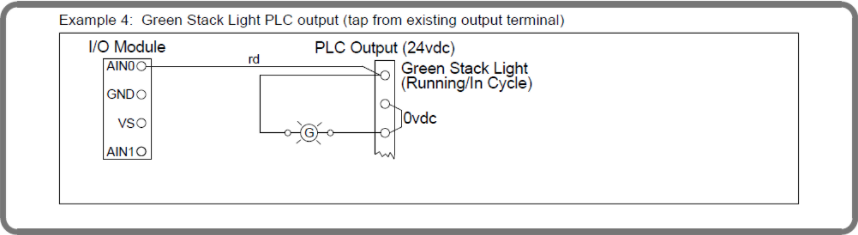
The most common I/O method taps the green stack light output on the PLC output terminal block.
Locating the output terminals:
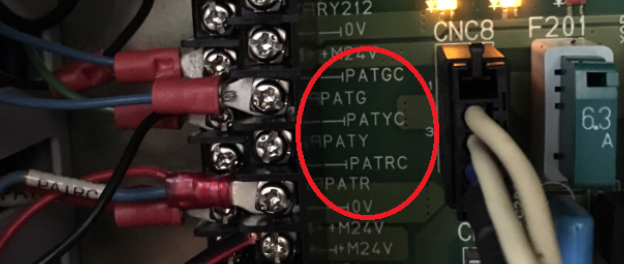
Stack light outputs on Citizen machines are typically labeled PATGC / PATG (green — running) and PATRC / PATR (red — alarm) on the CNC8 terminal block inside the electrical cabinet.
Wiring diagram:
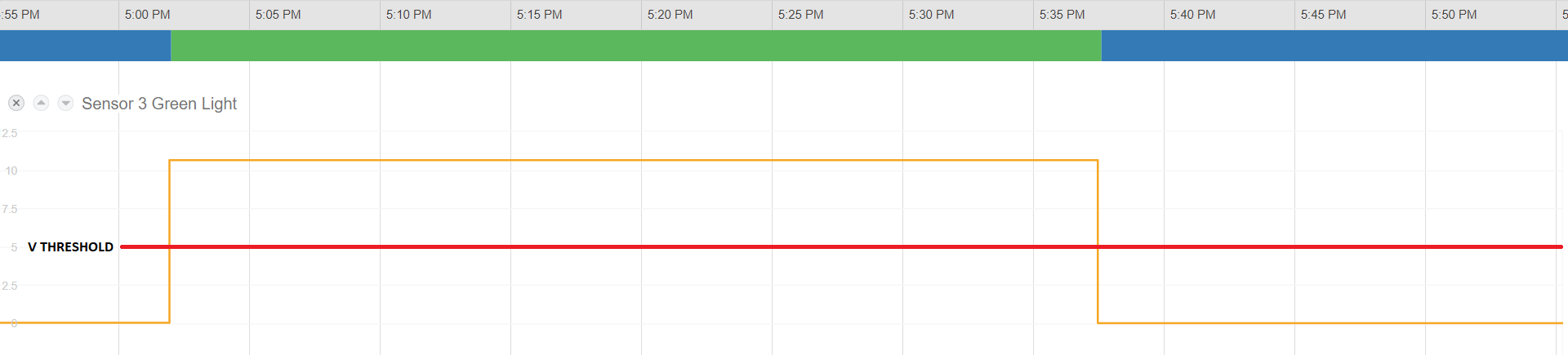
Result in MachineMetrics:
The green light voltage signal drops when the machine stops running, enabling automatic cycle time tracking via threshold detection.
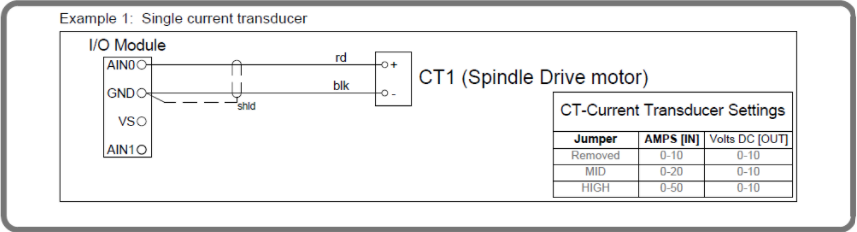
Method 2: Current Transducer (Spindle Load)
A current transducer (CT) clipped around the spindle drive motor cable provides an analog voltage signal proportional to spindle load — useful for detecting cycle activity on machines without accessible digital outputs.
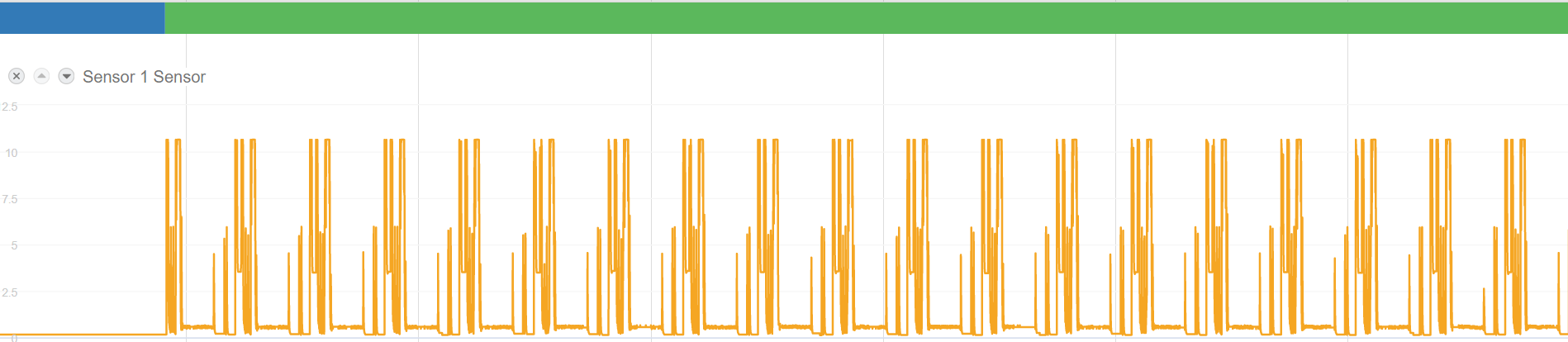
Result in MachineMetrics:
The CT signal produces a voltage waveform that peaks during cutting and drops to near-zero when idle.
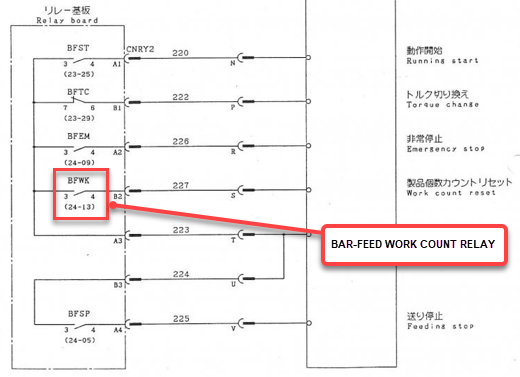
Method 3: Bar-Feed Work Count Relay
Citizen machines equipped with bar feeders have a Bar-Feed Work Count Relay (BFWK) in the relay board. This relay pulses each time a new bar feed cycle completes, making it ideal for part counting.
Locating the relay:
The BFWK relay is found on the relay board inside the machine, typically at terminals 24-13 on the relay labeled B2.
Method 4: M-Function Relay (Spare M-Code Part Count)
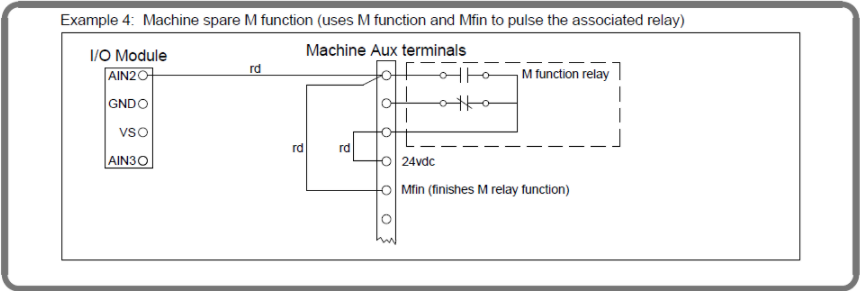
For machines where a dedicated part-count M-code (e.g., M56) is programmed into the NC, the corresponding M-function relay and Mfin signal can be wired to the I/O module as a part-count trigger.
Wiring diagram:
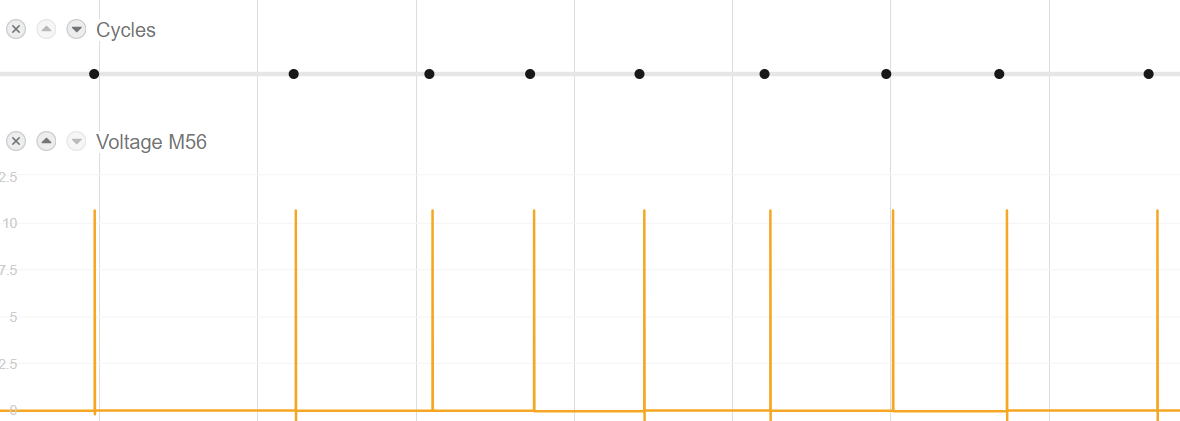
Result in MachineMetrics:
Each M56 pulse is captured as a discrete part-count event.
For full I/O module wiring instructions, see the Digital I/O Connectivity Guide.
Troubleshooting
Cannot Connect to Machine
Problem: Connection test fails when adding machine.
Solutions:
-
Verify Firmware Version
- Check that NC-MAIN firmware meets minimum requirements
- Contact Citizen distributor for firmware upgrade if needed
-
Verify IP Address
- Confirm IP address on machine control
- Check for typos in MachineMetrics
-
Verify Port Number
- Common port: 683
- Check control network settings
- Try port 10001 if 683 doesn't work
-
Check Network Connectivity
- Ping machine from Edge device or computer
- Ensure machine and Edge are on same network/VLAN
- Check firewall rules
-
Verify Machine Powered On
- Control must be powered on
- Ethernet communication must be enabled
Machine Alarms or Freezes
Problem: Machine alarms or control freezes when connected.
Solution:
This is likely a firmware issue. Contact your Citizen distributor immediately to upgrade the NC-MAIN firmware to the minimum recommended version or higher.
⚠️ CRITICAL: Do not continue using MachineMetrics if the machine is alarming or freezing. Upgrade firmware first.
No Data Appearing
Problem: Machine connects but no data displays in MachineMetrics.
Solutions:
-
Check Adapter Settings
- Verify correct adapter type selected (Citizen M700 or Mitsubishi M70)
- Review Data Collection tab
-
Run a Program
- Some data only appears during operation
- Load and run a test program
-
Check Control Settings
- Ensure external communication enabled
- Verify no security restrictions blocking data
Part Count Not Incrementing
Problem: Part count stays at zero or doesn't increment.
Solutions:
-
Verify Part Count Method
- Go to Machine Settings → Data Collection
- Select correct part counting method
-
Check Work Counter Configuration
- Verify Work Counter is enabled on control (see Part Count Configuration section)
- Ensure parameter 6401 is properly configured
-
Verify M-Code in Program
- If using M-code method, check if M-code is in program
- Ensure barfeeder signal is wired (if using signal method)
-
M850 Control: Check Parameter #8001
- On M850 controls, the external part-count signal must be bound to the M-code used in the part program via parameter
#8001 - If
#8001is not set, MachineMetrics shows 0 parts even when the HMI counter increments - See Citizen M850 Control for configuration steps
- On M850 controls, the external part-count signal must be bound to the M-code used in the part program via parameter
-
Run Complete Cycle
- Part count may only increment on M30 or program end
- Run a full cycle to test
Wrong Adapter Type Selected
Problem: Accidentally selected wrong adapter or MTConnect.
Solution:
- Go to Machine Settings for that machine
- Click Data Collection tab
- Click Change Adapter or remove and re-add
- Select correct adapter:
- Citizen M700 (for M700 controls)
- Mitsubishi M70 (for M850 controls)
- Re-configure connection settings
- Test connection and save
Additional Resources
Related Guides:
- Mitsubishi Connectivity Guide - For Mitsubishi M70/M700 machines
- Connectivity Overview - Choosing the right protocol
- Machine Settings Guide - Configuring machine settings and part counting
Getting Help:
- MachineMetrics Support: support@machinemetrics.com
- Include in support request:
- Machine make and model
- Control type and version (M700 or M850)
- Firmware version (NC-MAIN)
- IP address and port
- Screenshots of connection error (if applicable)
- Adapter type selected
Ready to connect your Citizen machine?
- Verify firmware meets minimum requirements
- Configure network settings on control
- Assign static IP address to machine
- Test network connectivity with ping
- Add machine in MachineMetrics with appropriate adapter
- Configure part counting method
Questions? Contact support@machinemetrics.com or your Solution Delivery Manager (SDM).