System Settings Guide
Overview
What are System Settings?
System Settings is the central configuration area for MachineMetrics. This is where administrators configure company-wide settings, manage users, set up machine groups and schedules, configure downtime and quality categories, and integrate with external systems.
Key Capabilities:
- Configure user profiles and notification preferences
- Set company-wide defaults and goals
- Manage users and assign roles
- Organize machines into groups
- Define shift schedules
- Configure downtime and quality categories
- Manage operators and ShopPulse Interface settings
- Generate API keys for integrations
- Configure Single Sign-On (SSO)
Who Uses System Settings:
- IT Admins: Full access to all settings, including SSO and API keys
- Executives: Access to all settings
- Managers: Access to most settings, including user management
- Supervisors: Limited access (view only for most settings)
Accessing System Settings
Opening System Settings
Step-by-Step:
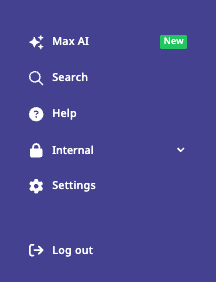
- Look at the bottom left corner of the MachineMetrics interface
- Click the gear icon (⚙️)
- Settings menu appears from the bottom of the screen
Settings Menu Structure: The left sidebar contains all settings categories:
- Profile
- Company
- Users
- Machine Groups
- Machine Schedules
- Activities
- Auto Setup
- Downtimes
- Quality
- Operators
- ShopPulse Interface
- API Keys
- Integrations
- Single Sign-On
Settings Sections
Each area of System Settings has its own page, listed in the sidebar and summarized here.
| Section | What you configure |
|---|---|
| Profile | Your own account details and notification preferences |
| Company | Company-wide defaults, goals, units, and time zone |
| Users | Who can sign in and what their role allows |
| Machine Groups | Grouping machines by cell, department, or site |
| Machine Schedules | Shifts and planned downtime |
| Activities | Activity types operators can select |
| Auto Setup | Automatic detection of setup periods |
| Downtimes | Downtime reason categories and thresholds |
| Quality | Reject and scrap reason codes |
| Operators | The operator list and clock-in behavior |
| Operator Dashboard | What operators see on the ShopPulse Interface |
| API Keys | Keys for integrations and custom applications |
| Integrations | ERP, MES, and other external connections |
| Single Sign-On | OIDC authentication through your identity provider |
| Edge Management | Edge device status and remote actions |
Best Practices
User Management
1. Assign Appropriate Roles
- Don't give everyone Executive role
- Use Supervisor for floor leads, Manager for operations managers
- Reserve IT Admin for IT department only
2. Review User List Regularly
- Deactivate accounts for departed employees
- Audit roles quarterly (do users still need access?)
3. Use SSO if Available
- Centralized management
- Better security (company password policies, MFA)
Machine Organization
1. Create Logical Machine Groups
- Group by type (CNC Mills, CNC Lathes, Manual Welding)
- Or by location (Building A, Building B)
- Or by product line (Aerospace, Automotive)
2. Assign Appropriate Downtime Categories to Groups
- CNC machines: Tool Change, Setup, Material Unavailable
- Manual machines: Operator Unavailable, Manual Operations
- Don't show irrelevant categories (reduces clutter on tablets)
3. Name Machines Consistently
- Use format: "[Type]-[Number]" (e.g., "Mill-003", "Lathe-CNC-104")
- Or: "[Brand]-[Model]-[Number]" (e.g., "Haas-VF3-001")
- Avoid generic names ("Machine 1")
Schedules and Shifts
1. Define Shifts Before Going Live
- OEE calculations depend on scheduled time
- Without shifts, scheduled time = 24/7 (unrealistic)
2. Use Attended vs. Unattended Appropriately
- Attended: Shifts with operators present
- Unattended: Overtime or weekend shifts without operators
3. Review Shifts When Schedules Change
- Update shifts if company changes shift times
- Affects OEE calculations (historical data recalculates)
Downtime and Quality
1. Create Clear, Specific Categories
- "Tool Change" (clear) vs. "Tooling" (vague)
- Use hierarchy for specificity: "Tooling | Tool Change | End of Life"
2. Limit Number of Categories
- Too many categories = confused operators
- Aim for 10-20 top-level categories, with subcategories as needed
3. Train Operators on Categorization
- Show operators why it matters (improvements result from their data)
- Demonstrate on tablets during onboarding
API Keys and Integrations
1. Use Minimum Required Scopes
- Only select scopes you need
- Reduces security risk if key compromised
2. Name Keys Descriptively
- Include purpose and scope in name
- Example: "Power BI - Reporting Read Only"
3. Store Keys Securely
- Use password manager or secrets management system
- Don't hardcode in scripts or commit to version control
4. Rotate Keys Periodically
- Create new key, update integrations, revoke old key
- Recommended: Annually or after employee departure
Operator Dashboard
1. Start with Default Tabs, Customize Later
- Learn what operators actually use
- Remove unused tabs after observing usage
2. Test Custom Tabs Before Rolling Out
- Verify content loads on tablets
- Check mobile responsiveness (some sites don't work well on tablets)
3. Place Tablets Strategically
- Easily accessible without interrupting workflow
- Protected from chips, coolant, debris
Getting Help
Common Questions
"I'm not receiving workflow notifications"
- Check Profile settings → Notification preferences (default is "Never")
- Verify mobile number entered (if using text notifications)
- Check notification schedule (are you outside configured hours?)
"Operators don't see downtime categories on tablets"
- Check Machine Groups → Verify downtime categories assigned to machine's group
- Check Downtimes → Verify categories not archived
"OEE seems wrong / Availability too low"
- Check Machine Schedules → Verify shifts configured (without shifts, scheduled time = 24/7)
- Check Downtimes → General Settings → "Exclude planned downtime from production metrics" setting
- See Understanding Your Data Guide
"API key not working"
- Verify correct scope selected when creating key
- Check API key copied correctly (no extra spaces or characters)
- Ensure key not revoked
- Test with simple API call (e.g., list machines)
"SSO login fails"
- Verify Client ID and Client Secret correct
- Check Issuer URL (correct format for your SSO provider?)
- Contact MachineMetrics support for SSO troubleshooting
"Auto Setup not activating"
- Verify APM enabled for machine
- Check machine reporting program headers
- Ensure consistent cycle times (highly variable cycles won't trigger transition to Production)
Before Contacting Support
Gather Information:
- Which setting you're configuring (screenshot helpful)
- What you expected vs. what happened
- User role (do you have permission to edit this setting?)
- Steps to reproduce issue
Try These Steps:
- Refresh page (F5 or Cmd+R)
- Clear browser cache
- Try different browser (Chrome recommended)
- Verify permissions (IT Admin, Manager, or Executive role for most settings)
- Check system status (status.machinemetrics.com)
Contact Support
MachineMetrics Support:
- Email: MachineMetrics Support
- Include:
- Setting you're trying to configure
- Screenshot of issue or error message
- Your role in MachineMetrics
- Expected behavior vs. actual behavior
For Training:
- Request system settings training session
- Ask about best practices for your industry or use case
- Schedule administrator onboarding for new team members
For SSO Setup:
- SSO setup is complex and provider-specific
- Contact support for detailed setup guide specific to your SSO provider
- Support can provide redirect URLs and configuration assistance
Next Steps:
- Configure your profile: Profile Settings
- Set up users and roles: Users Management
- Organize machines: Machine Groups and Machine Schedules
- Configure downtime and quality: Downtimes and Quality
- Set up integrations: API Keys, Integrations, Single Sign-On
Questions? Contact MachineMetrics Support