Downtimes
What is Downtimes?
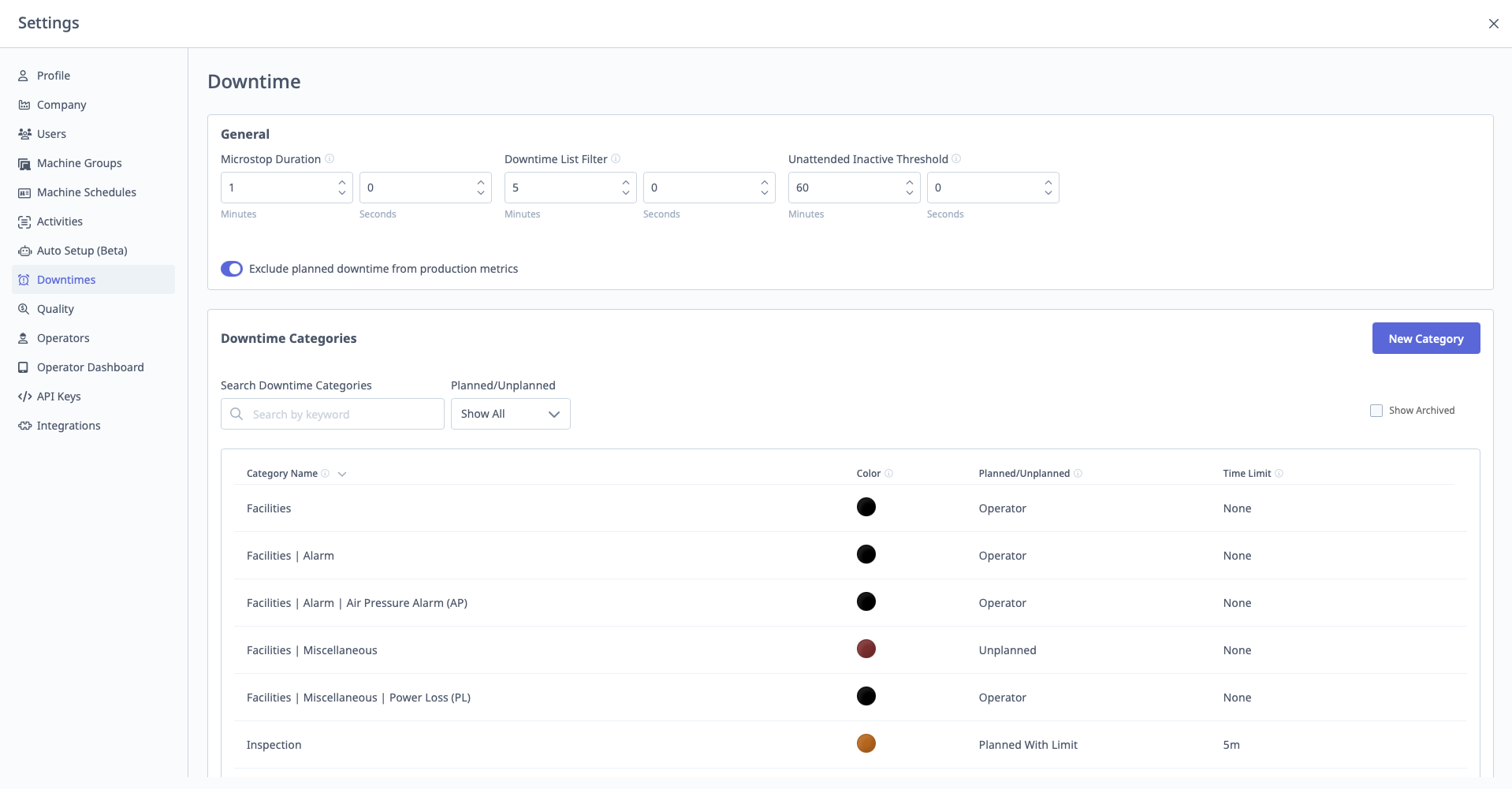
Downtimes is where you configure downtime categories (reasons) and general downtime settings.
Access: Settings → Downtimes
Who Can Manage: Managers, Executives, IT Admins
General Downtime Settings
Access: Settings → Downtimes → General
Key Settings:
1. Microstop Duration (seconds)
Purpose: Threshold separating microstops from long downtime.
Configuration:
- Enter duration in seconds (e.g., 60)
- Default: 60 seconds
Impact:
- Downtime < threshold: Categorized as "Microstop"
- Downtime ≥ threshold: Categorized as "Long Downtime"
Reporting:
- Microstops typically excluded from downtime reports
- Long downtime requires categorization
2. Downtime List Filter (seconds)
Purpose: Hide very short downtime events from operator categorization list.
Configuration:
- Enter duration in seconds (e.g., 30)
- Default: 30 seconds
Impact:
- Downtime < filter: Hidden from operator's categorization list on tablet
- Prevents operators from being prompted to categorize very short stops
Example:
Downtime List Filter: 30 seconds

5-second stop: Hidden (not prompted)
45-second stop: Shown (operator can categorize)
3. Unattended Inactive Threshold (minutes)
Purpose: For unattended shifts, determines when idle time becomes unscheduled.
Configuration:
- Enter duration in minutes (e.g., 30)
- Default: 30 minutes
Impact:
- During unattended shifts, if machine idle > threshold:
- Time becomes unscheduled (doesn't affect Availability)
- If machine idle < threshold:
- Time remains scheduled (affects Availability)
See Also: Machine Schedules and Understanding Your Data Guide
4. Exclude Planned Downtime from Production Metrics
Purpose: Exclude planned downtime (breaks, PM, etc.) from Availability and Performance calculations.
Configuration: Toggle on/off
Impact When Enabled:
- Planned downtime subtracted from scheduled time
- Does not hurt Availability or Performance
- Still included in Quality calculation
Impact When Disabled:
- All downtime (planned and unplanned) affects Availability equally
Example:
Scheduled Time: 8 hours (480 minutes)
Planned Break: 30 minutes
Planned Maintenance: 60 minutes

If Enabled:
Scheduled Time = 480 - 30 - 60 = 390 minutes

If Disabled:
Scheduled Time = 480 minutes (breaks/PM hurt Availability)
Downtime Categories
Access: Settings → Downtimes → Downtime Categories
Purpose: Define reasons for downtime that operators select in ShopPulse and automatic downtime rules assign to events.
See Also: Downtime Guide for category management, or Automatic Downtime Categorization to assign these reasons using rules
Start with a small set of broad reasons unless you are replicating an established downtime tracking system. Choose categories for the losses you need to compare in reporting, then add detail as needed. See Choosing Your Initial Categories before building a hierarchy.
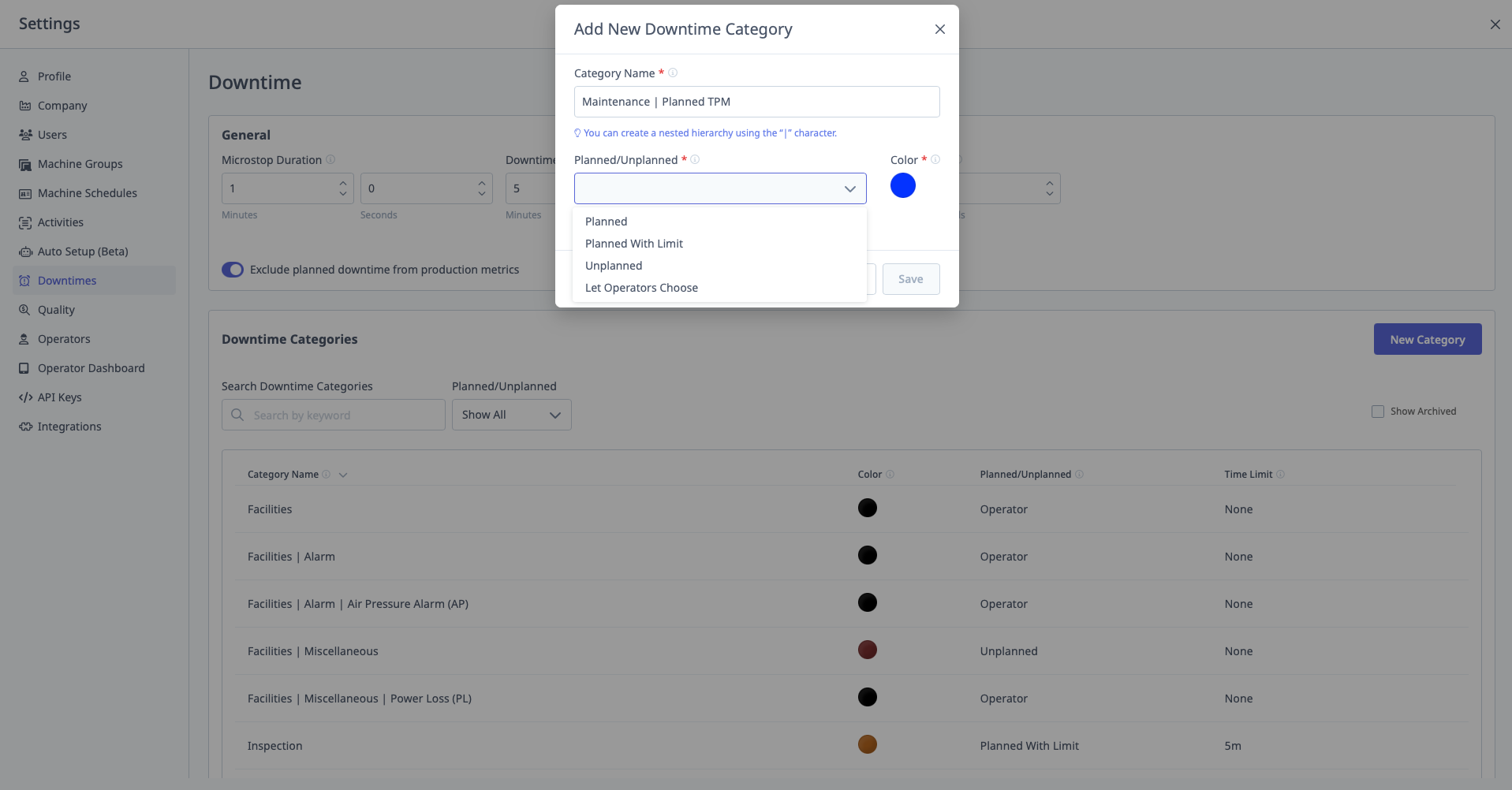
Creating Downtime Categories
Step-by-Step:
- Navigate to Settings → Downtimes → Downtime Categories
- Click "Add Category"
- Enter Category Name
- Select Planned/Unplanned Behavior:
- Planned or Unplanned: Operator chooses
- Unplanned: Always unplanned
- Planned: Always planned
- Planned with Limit: Planned up to X minutes, then unplanned
- Select Color (for visual identification)
- Click "Save"
Creating Hierarchical Categories
Purpose: Nest categories for more specific root cause tracking.
Format: Use pipe (|) separator
Example:
Parent Category: Tooling
Child Category: Tooling | Tool Change
Grandchild Category: Tooling | Tool Change | End of Life
Steps:
- Create parent first:
Tooling - Create child:
Tooling | Tool Change(note the space before and after|) - Create grandchild:
Tooling | Tool Change | End of Life
Important: You must create each level separately.
In Settings, there is an example showing the correct format with the vertical space bar character (|).
Planned with Limit
Purpose: Mark downtime as planned up to a certain duration, then unplanned if it exceeds.
Example:
Category: Operator Break
Behavior: Planned with Limit
Limit: 15 minutes

Scenario:
Break duration: 10 minutes → Planned (OK)
Break duration: 20 minutes → 15 min planned, 5 min unplanned (excess)
Use Case: Allow reasonable breaks without affecting OEE, but flag excessive breaks.
Colors
Purpose: Visual identification on tablets, timelines, and reports.
Best Practice:
- Use consistent colors for related categories
- Example: All "Maintenance" categories = orange, all "Material" categories = blue
Operator View: Colors appear on:
- Operator Dashboard (tablet)
- Timeline visualization
- Downtime reports
Assigning Categories to Machine Groups
When creating/editing Machine Groups:
- Select which downtime categories apply to that group
- Only selected categories appear on tablets for machines in that group
Example:
Group: CNC Mills
Categories: Tool Change, Setup, Material Unavailable, Maintenance

Group: Manual Welding
Categories: Waiting for Welder, Material Unavailable, Electrode Change

Operators on CNC Mills only see the 4 categories relevant to mills.